Product tour
From first message to reviewed work.
Five short workflows from a local preview based on PAVONA 1.5.57. Use the numbered steps, arrow keys or a swipe. The screenshots show an empty-state fixture; running work is explained from the current interface source.
→next ←back Spacenext Homefirst Escoverview Ttheme
01 / Start a task
Begin with a question or a job.
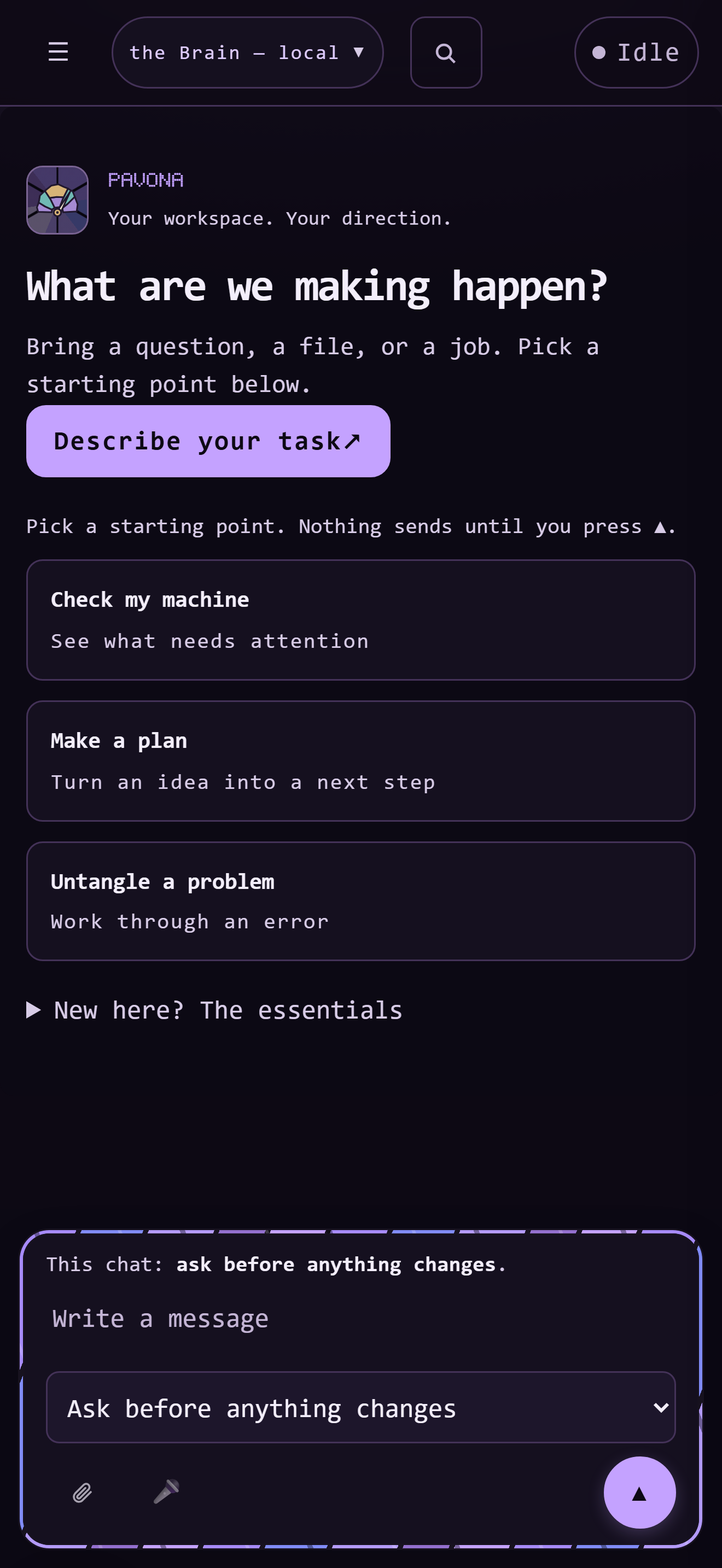
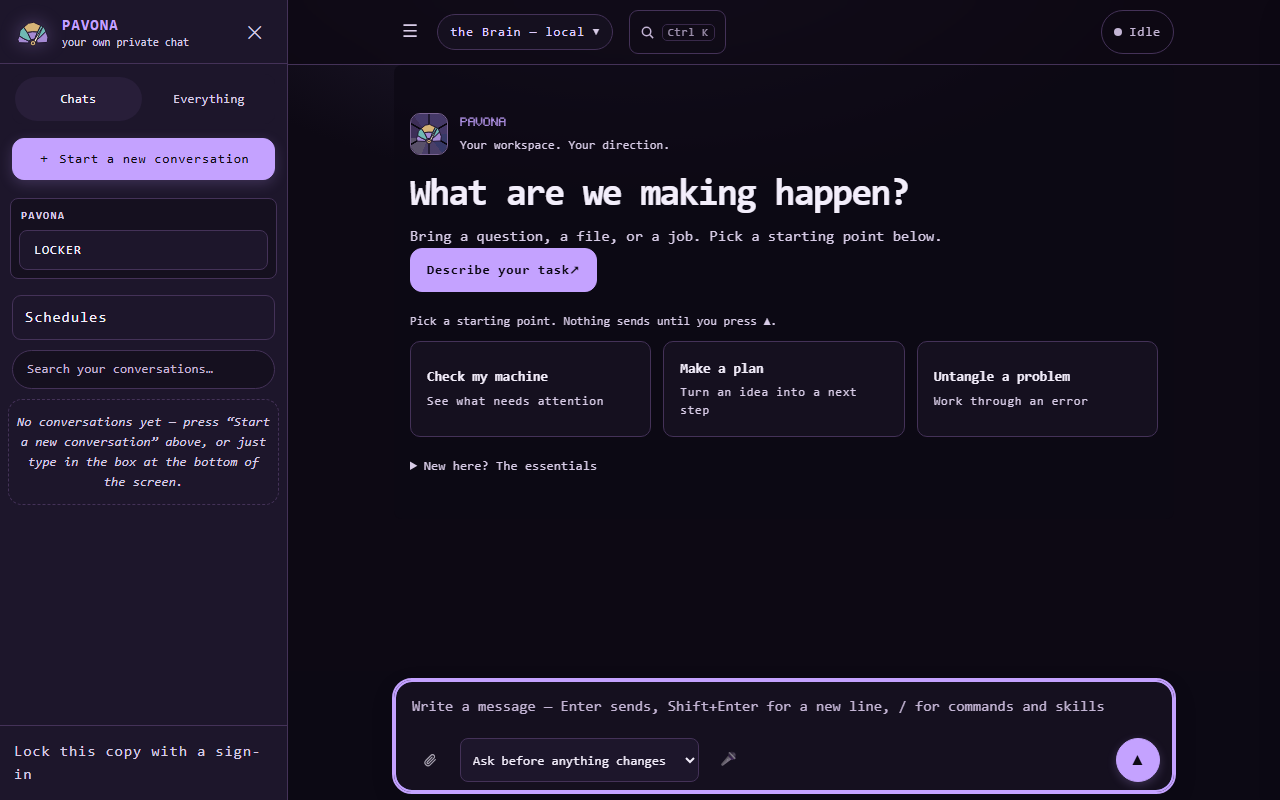
The workspace asks What are we making happen? Choose a starting card such as Make a plan, or type in the message box. A card prepares a draft; you decide when to send it.
02 / Choose a model
Pick who answers, then set the boundary.
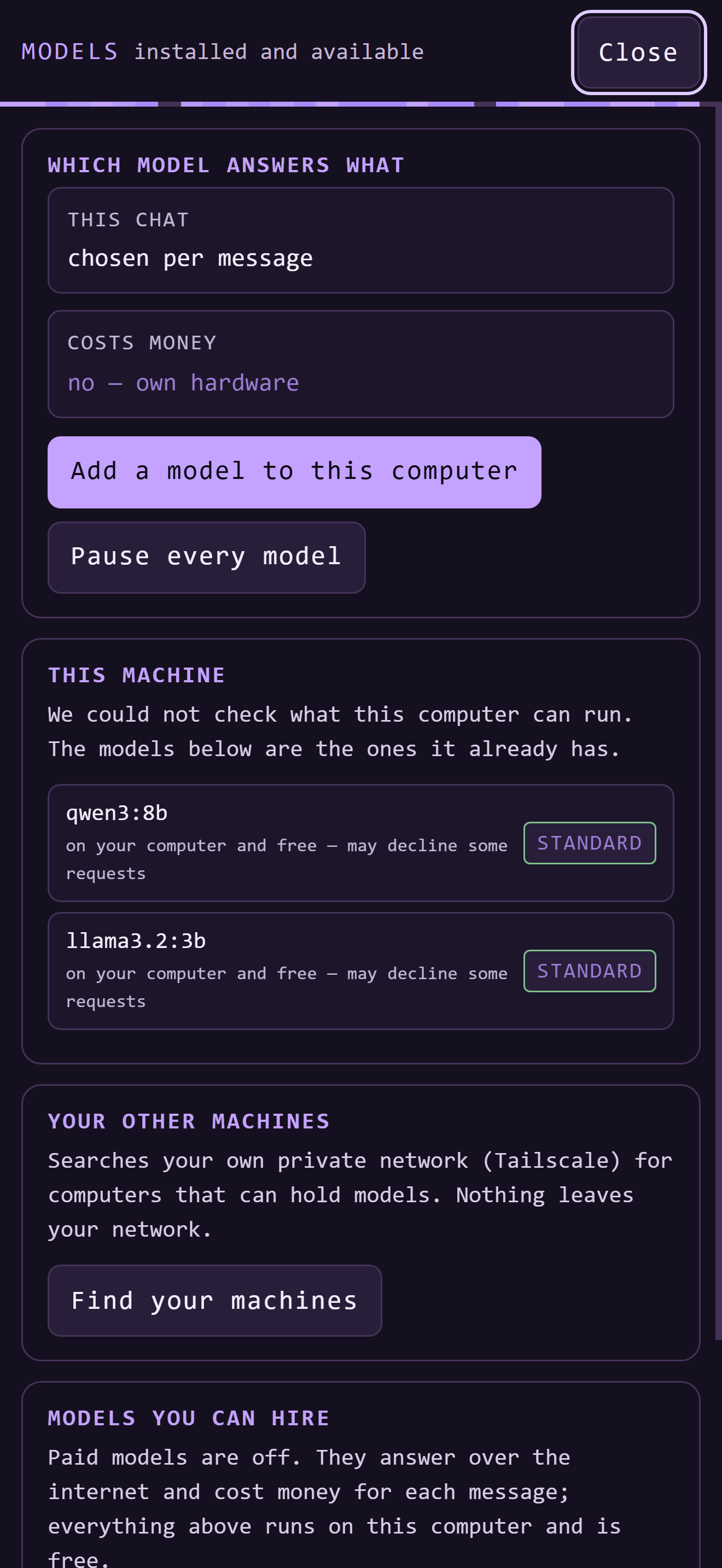
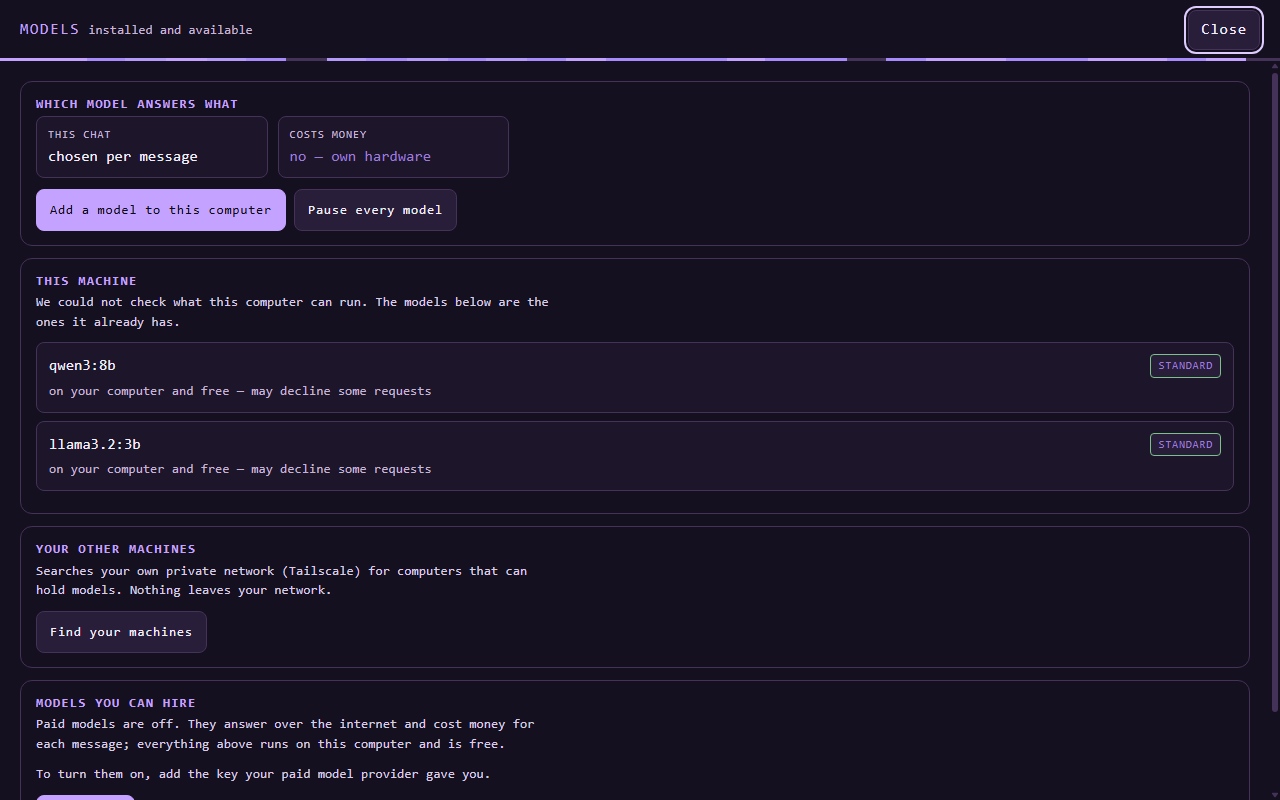
The top model control opens the available models. The composer permission choice starts at Ask before anything changes; Plan only, change nothing is a narrower option. Review both before sending work that could use tools.
03 / Add context
Bring the material the task needs.
The composer has Attach a file beside the message box. Type a slash to open Commands and skills. Check the selected file, command or skill and the permission setting before sending.
This step describes visible controls from the interface source. The empty-state screenshots do not prove a file or skill was consumed.
04 / Follow work
See what is planned and what ran.
Open Work while a task is active. Its Plan, Files, Runs, Permissions and Records views separate intent, local changes and recorded activity. Read a run receipt before treating an action as finished.
- Plan
- Files
- Runs
- Permissions
- Records
This is a route through the current interface, not a screenshot of a completed background task.
05 / Review a change
Decide what stays.
When a file change exists, open its change card and inspect the diff. Keep accepts it; Put back this edit starts a confirmation path. A receipt or button is not proof of a later physical file state, so read back the result.
PAVONA 1.5.57 base with local preview source 1f32decc0117. This tour does not claim an end-to-end tool or rollback journey passed.